

Lesson Contents
Without HSRP authentication, any device on the subnet can send spoofed HSRP hello packets and hijack the default gateway by sending packets with a higher priority.
HSRP supports plain text and MD5 authentication. MD5 authentication provides stronger security than plain text.
Instead of transmitting the password in clear text in every HSRP hello packet, the router generates an MD5 hash of the key. Routers that do not share the same key will discard each other’s hello packets and cannot participate in the HSRP group.
There are two ways to configure MD5 authentication:
- Key-string: The password is configured directly on the interface.
- Key-chain: A named key chain is configured separately and referenced on the interface, allowing key lifetimes and key rotation.
In this lesson, you will learn how HSRP MD5 authentication works, how to configure it using both a key string and a key chain, and how to verify and troubleshoot it on Cisco IOS XE.
Key Takeaways
Here’s what you will learn in this lesson:
- With the key-string method, you should enable
service password-encryptionto store the key as a type 7 encrypted string instead of plain text in the running configuration. - Two routers can show different type 7 encoded strings for the same password because type 7 uses a device-specific XOR-based encoding. This is normal and does not prevent HSRP peers from authenticating each other.
- The key-chain method supports multiple keys with configurable send and accept lifetimes, allowing key rotation without disrupting HSRP operation.
- A key-chain is defined globally and referenced by name on the HSRP interface, keeping authentication credentials separate from the interface configuration.
- When MD5 keys are mismatched between peers, both routers discard each other’s hello packets, causing both to believe they are the active gateway.
- You can verify that HSRP MD5 authentication is active using
show standby(which displays the authentication method and key source) andshow key chain(which confirms key chain names, IDs, and lifetimes).
Prerequisites
You should be familiar with the basics of HSRP and know how to configure a simple network with HSRP using a single group.
Configuration
Let’s get started. Here is the topology we’ll use:
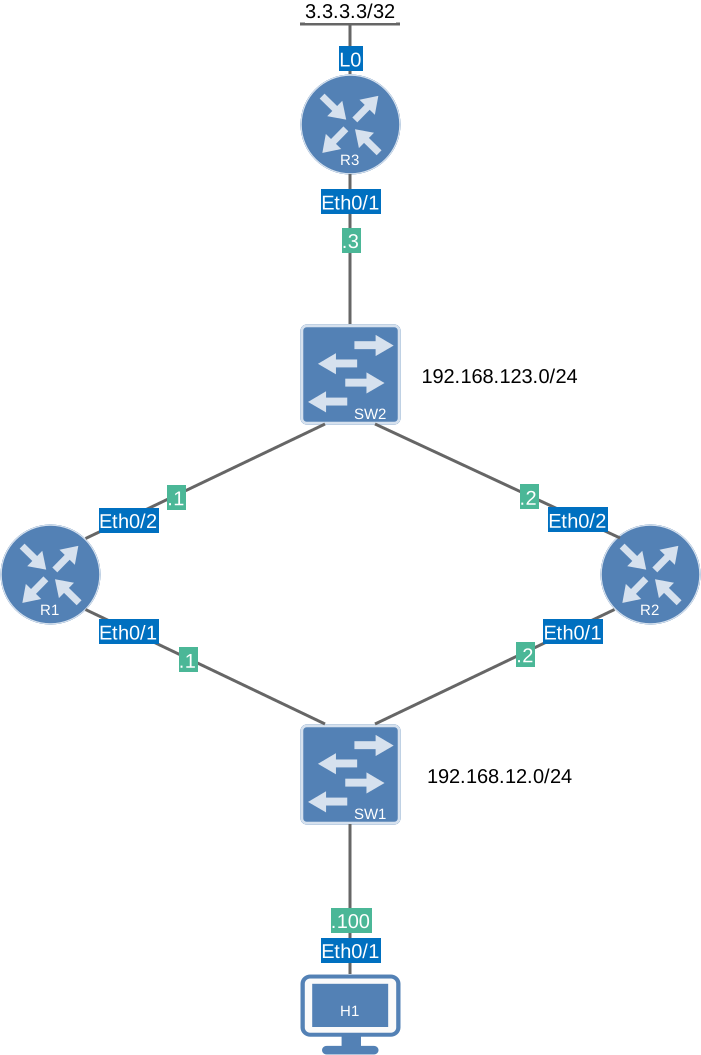
HSRP is configured on R1 and R2 without authentication. H1 is a host that we can use to test the default gateway. R3 is a remote router with a loopback interface 3.3.3.3/32. I’m running OSPF between R1, R2, and R3 so that we can reach that loopback.
HSRP Basic Single Group topology
Configurations
Want to take a look for yourself? Here you will find the startup configuration of each device.
R1
hostname R1
!
ip cef
!
interface Ethernet0/1
 ip address 192.168.12.1 255.255.255.0
 standby version 2
 standby 1 ip 192.168.12.254
 standby 1 priority 150
 standby 1 name HSRP_GATEWAY
!
interface Ethernet0/2
 ip address 192.168.123.1 255.255.255.0
!
router ospf 1
 router-id 1.1.1.1
 passive-interface Ethernet0/1
 network 192.168.12.0 0.0.0.255 area 0
 network 192.168.123.0 0.0.0.255 area 0
!
end
R2
hostname R2
!
ip cef
!
interface Ethernet0/1
 ip address 192.168.12.2 255.255.255.0
 standby version 2
 standby 1 ip 192.168.12.254
 standby 1 name HSRP_GATEWAY
!
interface Ethernet0/2
 ip address 192.168.123.2 255.255.255.0
!
router ospf 1
 router-id 1.1.1.1
 passive-interface Ethernet0/1
 network 192.168.12.0 0.0.0.255 area 0
 network 192.168.123.0 0.0.0.255 area 0
!
end
R3
hostname R3
!
ip cef
!
interface Loopback0
 ip address 3.3.3.3 255.255.255.255
!
interface Ethernet0/1
 ip address 192.168.123.3 255.255.255.0
!
router ospf 1
 network 3.3.3.3 0.0.0.0 area 0
 network 192.168.123.0 0.0.0.255 area 0
!
end
H1
hostname H1
!
ip cef
!
interface Ethernet0/1
 ip address 192.168.12.100 255.255.255.0
!
ip route 0.0.0.0 0.0.0.0 192.168.12.254
!
end
I’m using Cisco IOS Software [Dublin], Linux Software (X86_64BI_LINUX-ADVENTERPRISEK9-M), Version 17.12.1, RELEASE SOFTWARE (fc5) on all routers.
Key-String
With the key-string method, you configure the authentication password directly on the interface. You can store it as plain text:
R1(config-if)#standby [group-number] authentication md5 key-string key-valueOr as a type 7 encrypted string:
R1(config-if)#standby [group-number] authentication md5 key-string 7 encrypted-keyWe will use the type 7 option so the key does not appear as plain text in the running configuration.
We first configure the key as plain text, then enable service password-encryption to encrypt it with type 7:
R1(config)#interface Ethernet0/1
R1(config-if)#standby 1 authentication md5 key-string MY_KEYR2(config)#interface Ethernet0/1
R2(config-if)#standby 1 authentication md5 key-string MY_KEYWithout password encryption, the key is visible as plain text in the running configuration:
R1#show running-config interface Ethernet0/1
Building configuration...

Current configuration : 217 bytes
!
interface Ethernet0/1
 ip address 192.168.12.1 255.255.255.0
 standby version 2
 standby 1 ip 192.168.12.254
 standby 1 priority 150
 standby 1 authentication md5 key-string MY_KEY
 standby 1 name HSRP_GATEWAY
end
Enable service password-encryption on both routers to encrypt the key:
R1(config)#service password-encryptionR2(config)#service password-encryptionThe key is now stored as a type 7 encrypted string:
R1#show running-config interface Ethernet0/1
Building configuration...

Current configuration : 227 bytes
!
interface Ethernet0/1
 ip address 192.168.12.1 255.255.255.0
 standby version 2
 standby 1 ip 192.168.12.254
 standby 1 priority 150
 standby 1 authentication md5 key-string 7 022B3D64202336
 standby 1 name HSRP_GATEWAY
endR2#show running-config interface Ethernet0/1
Building configuration...
Current configuration : 203 bytes
!
interface Ethernet0/1
ip address 192.168.12.2 255.255.255.0
standby version 2
standby 1 ip 192.168.12.254
standby 1 authentication md5 key-string 7 032962342D2A18
standby 1 name HSRP_GATEWAY
endNote that R1 and R2 show different type 7 strings for the same key. Type 7 uses a device-specific XOR-based encoding, so the same plain text password can produce a different encoded value on each device. Both values decode to MY_KEY, and the routers accept each other’s HSRP hello packets without any issues.
If you already have an existing type 7 encrypted key, you can configure it directly without going through the plain text step:
Router(config-if)#standby 1 authentication md5 key-string 7 022B3D64202336Use show standby to verify that MD5 authentication is active and the HSRP group is functioning:
R1#show standby
Ethernet0/1 - Group 1 (version 2)
  State is Active
    2 state changes, last state change 00:34:12
  Virtual IP address is 192.168.12.254
  Active virtual MAC address is 0000.0c9f.f001 (MAC In Use)
    Local virtual MAC address is 0000.0c9f.f001 (v2 default)
  Hello time 3 sec, hold time 10 sec
    Next hello sent in 1.296 secs
  Authentication MD5, key-string
  Preemption disabled
  Active router is local
  Standby router is 192.168.12.2, priority 100 (expires in 10.032 sec)
  Priority 150 (configured 150)
  Group name is "HSRP_GATEWAY" (cfgd)
FLAGS: 1/1R2#show standby
Ethernet0/1 - Group 1 (version 2)
State is Standby
10 state changes, last state change 00:05:38
Virtual IP address is 192.168.12.254
Active virtual MAC address is 0000.0c9f.f001 (MAC Not In Use)
Local virtual MAC address is 0000.0c9f.f001 (v2 default)
Hello time 3 sec, hold time 10 sec
Next hello sent in 1.232 secs
Authentication MD5, key-string
Preemption disabled
Active router is 192.168.12.1, priority 150 (expires in 9.168 sec)
MAC address is aabb.cc00.0210
Standby router is local
Priority 100 (default 100)
Group name is "HSRP_GATEWAY" (cfgd)
FLAGS: 0/1Both routers show Authentication MD5, key-string. R1 is active, and R2 is in standby. This confirms that authentication is working.
Configurations
Want to take a look for yourself? Here you will find the configuration of each device.
R1
!
hostname R1
!
 !
 address-family ipv4
 exit-address-family
 !
 address-family ipv6
 exit-address-family
!
no ip domain lookup
ip domain name lab
ip cef
ipv6 unicast-routing
ipv6 cef
!
spanning-tree mode rapid-pvst
!
username admin privilege 15 secret 9 $9$iUJussr6skq9Yk$Ta0O1hYDulBoN/Y7p3qGsrISfZUpcvSL5lGgO8gCSSc
!
interface Ethernet0/0
 ip address 10.65.97.11 255.255.255.0
!
interface Ethernet0/1
 ip address 192.168.12.1 255.255.255.0
 standby 1 ip 192.168.12.254
 standby 1 priority 150
 standby 1 authentication md5 key-string MY_KEY
 standby 1 name HSRP_GATEWAY
!
interface Ethernet0/2
 ip address 192.168.123.1 255.255.255.0
!
interface Ethernet0/3
 no ip address
!
router ospf 1
 router-id 1.1.1.1
 passive-interface Ethernet0/1
 network 192.168.12.0 0.0.0.255 area 0
 network 192.168.123.0 0.0.0.255 area 0
!
 logging synchronous
 transport input ssh
!
end
R2
!
hostname R2
!
 !
 address-family ipv4
 exit-address-family
 !
 address-family ipv6
 exit-address-family
!
no ip domain lookup
ip domain name lab
ip cef
ipv6 unicast-routing
ipv6 cef
!
spanning-tree mode rapid-pvst
!
username admin privilege 15 secret 9 $9$YNXgycCHWLZGx.$tOMrcdy3z3464GLBovYgZkrcbcYLxIvkWzyiRFR5EOk
!
interface Ethernet0/0
 ip address 10.65.97.12 255.255.255.0
!
interface Ethernet0/1
 ip address 192.168.12.2 255.255.255.0
 standby 1 ip 192.168.12.254
 standby 1 authentication md5 key-string MY_KEY
 standby 1 name HSRP_GATEWAY
!
interface Ethernet0/2
 ip address 192.168.123.2 255.255.255.0
!
interface Ethernet0/3
 no ip address
!
router ospf 1
 router-id 1.1.1.1
 passive-interface Ethernet0/1
 network 192.168.12.0 0.0.0.255 area 0
 network 192.168.123.0 0.0.0.255 area 0
!
 logging synchronous
 transport input ssh
!
end
R3
!
hostname R3
!
 !
 address-family ipv4
 exit-address-family
 !
 address-family ipv6
 exit-address-family
!
no ip domain lookup
ip domain name lab
ip cef
ipv6 unicast-routing
ipv6 cef
!
spanning-tree mode rapid-pvst
!
username admin privilege 15 secret 9 $9$MC0tia/vdT.Ur.$qNnFnVZZHqqIs7tCBeNQX1UFOjixQitJUzmU8MVnhtU
!
interface Loopback0
 ip address 3.3.3.3 255.255.255.255
!
interface Ethernet0/0
 ip address 10.65.97.13 255.255.255.0
!
interface Ethernet0/1
 ip address 192.168.123.3 255.255.255.0
!
interface Ethernet0/2
 no ip address
!
interface Ethernet0/3
 no ip address
!
router ospf 1
 network 3.3.3.3 0.0.0.0 area 0
 network 192.168.123.0 0.0.0.255 area 0
!
 logging synchronous
 transport input ssh
!
end
H1
!
hostname H1
!
 !
 address-family ipv4
 exit-address-family
 !
 address-family ipv6
 exit-address-family
!
no ip domain lookup
ip domain name lab
ip cef
ipv6 unicast-routing
ipv6 cef
!
spanning-tree mode rapid-pvst
!
username admin privilege 15 secret 9 $9$G8etyiuSMELqtU$k7Jt8s6zgOOTDBgbfXi/XN07kheoYl.smvN2poPtDW2
!
interface Ethernet0/0
 ip address 10.65.97.14 255.255.255.0
!
interface Ethernet0/1
 ip address 192.168.12.100 255.255.255.0
!
interface Ethernet0/2
 no ip address
!
interface Ethernet0/3
 no ip address
!
ip route 0.0.0.0 0.0.0.0 192.168.12.254
!
 logging synchronous
 transport input ssh
!
end
Authentication Mismatch
It might be interesting to see what happens when we configure a wrong key on one of the two routers. Let’s try this on R2:
R2(config)#interface Ethernet0/1
R2(config-if)#standby 1 authentication md5 key-string WRONG_KEY
After the HSRP hold timer expires, R2 stops receiving valid hello packets from R1 and transitions to the active state. Both routers now claim to be active:
R1#show standby brief
                     P indicates configured to preempt.
                     |
Interface   Grp  Pri P State   Active          Standby         Virtual IP
Et0/1 1 150 Active local unknown 192.168.12.254R2#show standby brief
P indicates configured to preempt.
|
Interface Grp Pri P State Active Standby Virtual IP
Et0/1 1 100 Active local unknown 192.168.12.254Both routers show standby as unknown, and both are in the active state. Mismatched MD5 keys cause each router to discard the other’s hello packets, so both routers now believe they are the active gateway.
Key-Chain
Let’s continue. The key-chain method uses a separately configured named key chain that the HSRP interface points to. Key chains support multiple keys with configurable send and accept lifetimes, which allows you to do key rotation without taking HSRP down.
Hi Rene,
Let’s say after configuring HSRP, a DHCP server is located in a remote network. During the DHCP Discover process, on which interface should the virtual IP address be configured for DHCP relay (ip helper-address)?
Should the virtual IP be configured on:
Only the active interface, or
Both redundant interfaces?
Thank you in advance
Hello Thomas
That’s an excellent question! It helps us to understand how HSRP interacts with other features such as DHCP.
The quick answer to your question is that the
ip helper-addressshould be configured on both redundant interfaces, using the same DHCP server IP address on each interface. The HSRP virtual IP address should not be used.Remember that the
... Continue reading in our forumip helper-addresscommand specifies the destination IP address of the DHCP server(s), not the source gateway address for relay. So you would never use the virtual IP address or any “real” IP address of an