

Lesson Contents
OSPF (Open Shortest Path First) is configured using the router ospf command followed by network statements that specify which interfaces participate in OSPF and which area each belongs to. In this lesson, I’ll explain how to configure single-area OSPF with examples of setting the router ID, cost calculations, authentication, and default route advertisements.
Key Takeaways
- OSPF uses wildcard masks (inverse subnet masks) in network statements, not regular subnet masks.
- The router ID is selected from the highest loopback IP address, or the highest active interface IP address if no loopback exists.
- OSPF uses cost as a metric based on interface bandwidth.
- Authentication can be configured as plaintext or Message Digest 5 (MD5), either per interface or per area.
- The
show ip ospf neighborcommand verifies neighbor adjacencies. - Loopback interfaces provide stable router IDs and can be advertised like physical interfaces.
- Default routes are advertised with the
default-information originate alwayscommand.
Prerequisites
To follow this OSPF configuration lesson, you should have an understanding of basic OSPF. You can read the Introduction to OSPF lesson for this.
Configuration
Let’s start with the configuration. This is the topology we’ll use:
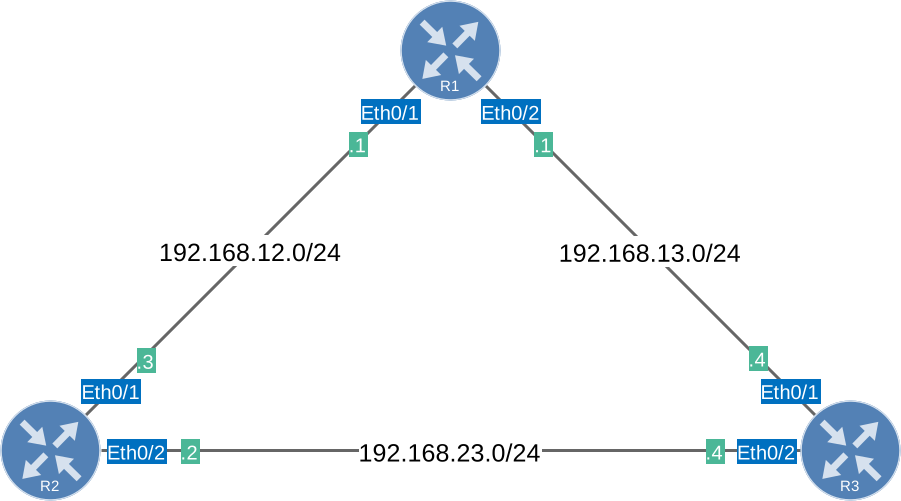
We have three routers, connected in a triangle. All routers are in OSPF Area 0.
Configurations
Want to take a look for yourself? Here you will find the startup configuration of each device.
R1
hostname R1
!
interface Ethernet0/1
 ip address 192.168.12.1 255.255.255.0
 no shutdown
!
interface Ethernet0/2
 ip address 192.168.13.1 255.255.255.0
 no shutdown
!
end
R2
hostname R2
!
interface Ethernet0/1
 ip address 192.168.12.2 255.255.255.0
 no shutdown
!
interface Ethernet0/2
 ip address 192.168.23.2 255.255.255.0
 no shutdown
!
end
R3
hostname R3
!
interface Ethernet0/1
 ip address 192.168.13.3 255.255.255.0
 no shutdown
!
interface Ethernet0/2
 ip address 192.168.23.3 255.255.255.0
 no shutdown
!
end
Router ID
We’ll start by enabling the router OSPF process on all routers. I’ll also manually set a router ID on each:
R1(config)#router ospf 1
R1(config-router)#router-id 1.1.1.1R2(config)#router ospf 1
R2(config-router)#router-id 2.2.2.2R3(config)#router ospf 1
R3(config-router)#router-id 3.3.3.3We use the router ospf command to start the process and the router-id command to set a unique router ID for each router.
The number “1” is a process ID, and you can choose any number you like. It doesn’t matter, and if you want, you can use a different number on each router.
Neighbor Adjacencies
Now, let’s establish neighbor adjacencies. We’ll start with R1 and R2:
R1(config)#router ospf 1
R1(config-router)#network 192.168.12.0 0.0.0.255 area 0R2(config)#router ospf 1
R2(config-router)#network 192.168.12.0 0.0.0.255 area 0The second step is to use the network command. Let me break it down for you:
network 192.168.12.0 0.0.0.255The network command does two things:
- Advertise the networks that fall within this range in OSPF.
- Activate OSPF on the interface(s) that fall within this range. This means that OSPF will send hello packets on the interface.
After 192.168.12.0, you can see it says 0.0.0.255. This is not a subnet mask but a wildcard mask. A wildcard mask is an inverse subnet mask. Let me give you an example:
|
Subnet mask |
255 |
255 |
255 |
0 |
|
11111111 |
11111111 |
11111111 |
00000000 |
|
| Wildcard mask |
0 |
0 |
0 |
255 |
|
00000000 |
00000000 |
00000000 |
11111111 |
When I say reverse subnet mask, I mean that the binary 1s and 0s of the wildcard mask are flipped compared to the subnet mask. A subnet mask of 255.255.255.0 is the same as a wildcard mask of 0.0.0.255. Don’t worry about this too much for now, as I’ll explain wildcard masks to you when we talk about access-lists!
OSPF uses areas, so you need to specify the area:
area 0In our example, we have configured a single-area OSPF. All routers belong to area 0.
After typing in my network command you’ll see this message in the console:
R1# %OSPF-5-ADJCHG: Process 1, Nbr 2.2.2.2 on Ethernet0/1 from LOADING to FULL, Loading DoneR2# %OSPF-5-ADJCHG: Process 1, Nbr 1.1.1.1 on Ethernet0/1 from LOADING to FULL, Loading DoneGreat! It seems that R1 and R2 have become neighbors. There’s another command we can use to verify that we have become neighbors:
R1#show ip ospf neighbor

Neighbor ID     Pri   State           Dead Time   Address         Interface
2.2.2.2 1 FULL/DR 00:00:34 192.168.12.2 Ethernet0/1R2#show ip ospf neighbor
Neighbor ID Pri State Dead Time Address Interface
1.1.1.1 1 FULL/BDR 00:00:37 192.168.12.1 Ethernet0/1show ip ospf neighbor is a great command to see if your router has OSPF neighbors. When the state is FULL, you know that the routers have successfully become neighbors. If you want to know the exact states, take a look at the OSPF neighbor adjacency states lesson.
Each OSPF router has a router ID, and we check it with the show ip protocols command:
R1#show ip protocols
*** IP Routing is NSF aware ***

Routing Protocol is "application"
  Sending updates every 0 seconds
  Invalid after 0 seconds, hold down 0, flushed after 0
  Outgoing update filter list for all interfaces is not set
  Incoming update filter list for all interfaces is not set
  Maximum path: 32
  Routing for Networks:
  Routing Information Sources:
    Gateway         Distance      Last Update
  Distance: (default is 4)

Routing Protocol is "ospf 1"
  Outgoing update filter list for all interfaces is not set
  Incoming update filter list for all interfaces is not set
  Router ID 1.1.1.1
  Number of areas in this router is 1. 1 normal 0 stub 0 nssa
  Maximum path: 4
  Routing for Networks:
    192.168.12.0 0.0.0.255 area 0
  Routing Information Sources:
    Gateway         Distance      Last Update
  Distance: (default is 110)
This gives a lot of information. You can see the router ID of R1 is 1.1.1.1. If we only care about the router ID, we can filter like this:
R2#show ip protocols | include ID
  Router ID 2.2.2.2
Right now, we have an OSPF neighbor adjacency between R1 and R2. Let’s configure our routers so that R1 and R3, and R2 and R3, also become OSPF neighbors:
R1(config)#router ospf 1
R1(config-router)#network 192.168.13.0 0.0.0.255 area 0R2(config)#router ospf 1
R2(config-router)#network 192.168.23.0 0.0.0.255 area 0R3(config)#router ospf 1
R3(config-router)#network 192.168.13.0 0.0.0.255 area 0
R3(config-router)#network 192.168.23.0 0.0.0.255 area 0I’ll advertise all networks in OSPF. Before we check the routing table, it’s a good idea to see if our routers have become OSPF neighbors:
R1#show ip ospf neighbor

Neighbor ID     Pri   State           Dead Time   Address         Interface
3.3.3.3           1   FULL/DR         00:00:38    192.168.13.3    Ethernet0/2
2.2.2.2 1 FULL/BDR 00:00:39 192.168.12.2 Ethernet0/1R2#show ip ospf neighbor
Neighbor ID Pri State Dead Time Address Interface
3.3.3.3 1 FULL/DR 00:00:31 192.168.23.3 Ethernet0/2
1.1.1.1 1 FULL/DR 00:00:35 192.168.12.1 Ethernet0/1R3#show ip ospf neighbor
Neighbor ID Pri State Dead Time Address Interface
2.2.2.2 1 FULL/BDR 00:00:31 192.168.23.2 Ethernet0/2
1.1.1.1 1 FULL/BDR 00:00:37 192.168.13.1 Ethernet0/1Excellent, our routers have become OSPF neighbors, and the state is full, which means they are done exchanging information.
Metrics
Let’s check the routing tables:
R1#show ip route ospf

O     192.168.23.0/24 [110/20] via 192.168.13.3, 00:00:53, Ethernet0/2
                      [110/20] via 192.168.12.2, 00:00:53, Ethernet0/1
Here’s what you see:
- The “O” stands for OSPF. This entry was learned through OSPF.
- 192.168.23.0/24 is the network we learned. This is the link between R2 and R3.
- The “110” is the administrative distance of OSPF. When a router learns the same network through multiple sources, this becomes a tie-breaker.
- The “20” is the metric. OSPF uses cost as a metric. To reach this network, we have a total cost of 20.
- “via” is the next hop IP address where we send our traffic to.
Since the total metric (cost) is the same for R2 and R3, R1 installs two routes to reach 192.168.23.0/24.
Here are R2 and R3:
R2#show ip route ospf

O     192.168.13.0/24 [110/20] via 192.168.23.3, 00:01:03, Ethernet0/2
[110/20] via 192.168.12.1, 00:01:03, Ethernet0/1R3#show ip route ospf
O 192.168.12.0/24 [110/20] via 192.168.23.2, 00:01:12, Ethernet0/2
[110/20] via 192.168.13.1, 00:01:12, Ethernet0/1R2 has an entry for 192.168.13.0/24 with two possible paths. R3 has an entry for 192.168.12.0/24 with two possible paths.
How did we come up with a total metric of 20? Let’s take a look at the interface:
R1#show ip ospf interface Ethernet0/1
Ethernet0/1 is up, line protocol is up
  Internet Address 192.168.12.1/24, Interface ID 3, Area 0
  Attached via Network Statement
  Process ID 1, Router ID 1.1.1.1, Network Type BROADCAST, Cost: 10
  Topology-MTID    Cost    Disabled    Shutdown      Topology Name
        0           10        no          no            Base
  Transmit Delay is 1 sec, State DR, Priority 1
  Designated Router (ID) 1.1.1.1, Interface address 192.168.12.1
  Backup Designated router (ID) 2.2.2.2, Interface address 192.168.12.2
  Timer intervals configured, Hello 10, Dead 40, Wait 40, Retransmit 5
    oob-resync timeout 40
    Hello due in 00:00:06
  Supports Link-local Signaling (LLS)
  Cisco NSF helper support enabled
  IETF NSF helper support enabled
  Can be protected by per-prefix Loop-Free FastReroute
  Can be used for per-prefix Loop-Free FastReroute repair paths
  Not Protected by per-prefix TI-LFA
  Index 1/1/1, flood queue length 0
  Next 0x0(0)/0x0(0)/0x0(0)
  Last flood scan length is 1, maximum is 3
  Last flood scan time is 0 msec, maximum is 0 msec
  Neighbor Count is 1, Adjacent neighbor count is 1
    Adjacent with neighbor 2.2.2.2  (Backup Designated Router)
  Suppress hello for 0 neighbor(s)
You can use the show ip ospf interface command to check the cost of a certain interface. As you can see, this interface has a cost of 10.
Best Path Selection
Let’s see what happens when we shut an interface. For example, the link between R1 and R2:
R1(config)#interface Ethernet0/1
R1(config-if)#shutdown
The first thing you’ll see is that R1 and R2 lose their neighbor adjacency:
R1#
%OSPF-5-ADJCHG: Process 1, Nbr 2.2.2.2 on Ethernet0/1 from FULL to DOWN, Neighbor Down: Interface down or detached
R1 shows this immediately because it knows the interface is down. For R2, it takes a bit longer, it declares R1 down when the dead timer has expired:
R2#
*%OSPF-5-ADJCHG: Process 1, Nbr 1.1.1.1 on Ethernet0/1 from FULL to DOWN, Neighbor Down: Dead timer expired
Now let’s check the paths:
R1#show ip route ospf
Codes: L - local, C - connected, S - static, R - RIP, M - mobile, B - BGP
       D - EIGRP, EX - EIGRP external, O - OSPF, IA - OSPF inter area
       N1 - OSPF NSSA external type 1, N2 - OSPF NSSA external type 2
       E1 - OSPF external type 1, E2 - OSPF external type 2, m - OMP
       n - NAT, Ni - NAT inside, No - NAT outside, Nd - NAT DIA
       i - IS-IS, su - IS-IS summary, L1 - IS-IS level-1, L2 - IS-IS level-2
       ia - IS-IS inter area, * - candidate default, U - per-user static route
       H - NHRP, G - NHRP registered, g - NHRP registration summary
       o - ODR, P - periodic downloaded static route, l - LISP
       a - application route
       + - replicated route, % - next hop override, p - overrides from PfR
       & - replicated local route overrides by connected

Gateway of last resort is not set

O     192.168.12.0/24 [110/30] via 192.168.13.3, 00:01:01, Ethernet0/2
O     192.168.23.0/24 [110/20] via 192.168.13.3, 00:07:12, Ethernet0/2
In the output above, you can see that R1 now uses R3 to reach the other two networks. The total metric for 192.168.12.0/24 is now 30 because it has to go through R3 and R2 to get to the 192.168.12.0/24 network.
Here’s R2:
R2#show ip route ospf
Codes: L - local, C - connected, S - static, R - RIP, M - mobile, B - BGP
       D - EIGRP, EX - EIGRP external, O - OSPF, IA - OSPF inter area
       N1 - OSPF NSSA external type 1, N2 - OSPF NSSA external type 2
       E1 - OSPF external type 1, E2 - OSPF external type 2, m - OMP
       n - NAT, Ni - NAT inside, No - NAT outside, Nd - NAT DIA
       i - IS-IS, su - IS-IS summary, L1 - IS-IS level-1, L2 - IS-IS level-2
       ia - IS-IS inter area, * - candidate default, U - per-user static route
       H - NHRP, G - NHRP registered, g - NHRP registration summary
       o - ODR, P - periodic downloaded static route, l - LISP
       a - application route
       + - replicated route, % - next hop override, p - overrides from PfR
       & - replicated local route overrides by connected

Gateway of last resort is not set

O     192.168.13.0/24 [110/20] via 192.168.23.3, 00:07:35, Ethernet0/2
R2 knows how to reach 192.168.13.0/24 through R3. Here is R3:
R3#show ip route ospf
Codes: L - local, C - connected, S - static, R - RIP, M - mobile, B - BGP
       D - EIGRP, EX - EIGRP external, O - OSPF, IA - OSPF inter area
       N1 - OSPF NSSA external type 1, N2 - OSPF NSSA external type 2
       E1 - OSPF external type 1, E2 - OSPF external type 2, m - OMP
       n - NAT, Ni - NAT inside, No - NAT outside, Nd - NAT DIA
       i - IS-IS, su - IS-IS summary, L1 - IS-IS level-1, L2 - IS-IS level-2
       ia - IS-IS inter area, * - candidate default, U - per-user static route
       H - NHRP, G - NHRP registered, g - NHRP registration summary
       o - ODR, P - periodic downloaded static route, l - LISP
       a - application route
       + - replicated route, % - next hop override, p - overrides from PfR
       & - replicated local route overrides by connected

Gateway of last resort is not set

O     192.168.12.0/24 [110/20] via 192.168.23.2, 00:01:48, Ethernet0/2
R3 knows how to reach 192.168.12.0/24 via R2. When an interface goes down, OSPF automatically recalculates the shortest path.
Before we continue, let’s recover that link:
R1(config)#interface Ethernet0/1
R1(config-if)#no shutdown
You can read more about how OSPF selects a path in the OSPF path selection lesson.
Cost Manipulation
What if I wanted to force OSPF to use one of the two Ethernet interfaces without shutting down the interface? It’s possible to manually change the cost. Let me show you how:
R2(config)#interface Ethernet0/1
R2(config-if)#ip ospf cost 100
We can verify this:
R2#show ip ospf interface Ethernet0/1 | include Cost
  Process ID 1, Router ID 2.2.2.2, Network Type BROADCAST, Cost: 100
Use the ip ospf cost command to change the cost. When I set it to 100, this link isn’t as attractive anymore. Let’s check this:
R2#show ip route ospf

Codes: L - local, C - connected, S - static, R - RIP, M - mobile, B - BGP
       D - EIGRP, EX - EIGRP external, O - OSPF, IA - OSPF inter area
       N1 - OSPF NSSA external type 1, N2 - OSPF NSSA external type 2
       E1 - OSPF external type 1, E2 - OSPF external type 2, m - OMP
       n - NAT, Ni - NAT inside, No - NAT outside, Nd - NAT DIA
       i - IS-IS, su - IS-IS summary, L1 - IS-IS level-1, L2 - IS-IS level-2
       ia - IS-IS inter area, * - candidate default, U - per-user static route
       H - NHRP, G - NHRP registered, g - NHRP registration summary
       o - ODR, P - periodic downloaded static route, l - LISP
       a - application route
       + - replicated route, % - next hop override, p - overrides from PfR
       & - replicated local route overrides by connected

Gateway of last resort is not set

O     192.168.13.0/24 [110/20] via 192.168.23.3, 00:10:29, Ethernet0/2
R2 now prefers only the link through R3 to get network 192.168.13.0/24. This is the shortest path.
We can also reduce the cost to make a link more attractive. For example, this is what we have right now on R1:
R1#show ip route ospf
Codes: L - local, C - connected, S - static, R - RIP, M - mobile, B - BGP
       D - EIGRP, EX - EIGRP external, O - OSPF, IA - OSPF inter area
       N1 - OSPF NSSA external type 1, N2 - OSPF NSSA external type 2
       E1 - OSPF external type 1, E2 - OSPF external type 2, m - OMP
       n - NAT, Ni - NAT inside, No - NAT outside, Nd - NAT DIA
       i - IS-IS, su - IS-IS summary, L1 - IS-IS level-1, L2 - IS-IS level-2
       ia - IS-IS inter area, * - candidate default, U - per-user static route
       H - NHRP, G - NHRP registered, g - NHRP registration summary
       o - ODR, P - periodic downloaded static route, l - LISP
       a - application route
       + - replicated route, % - next hop override, p - overrides from PfR
       & - replicated local route overrides by connected

Gateway of last resort is not set

O     192.168.23.0/24 [110/20] via 192.168.13.3, 00:12:23, Ethernet0/2
                      [110/20] via 192.168.12.2, 00:00:13, Ethernet0/1
R1 uses both links to get to 192.168.23.0/24. Let’s change the cost on the link from R1 to R3:
R1(config)#interface Ethernet0/2
R1(config-if)#ip ospf cost 1
Let’s verify that it has changed:
R1#show ip ospf interface Ethernet0/2 | include Cost
  Process ID 1, Router ID 1.1.1.1, Network Type BROADCAST, Cost: 1
Instead of using both links, R1 will now use the shortest path:
R1#show ip route ospf
Codes: L - local, C - connected, S - static, R - RIP, M - mobile, B - BGP
       D - EIGRP, EX - EIGRP external, O - OSPF, IA - OSPF inter area
       N1 - OSPF NSSA external type 1, N2 - OSPF NSSA external type 2
       E1 - OSPF external type 1, E2 - OSPF external type 2, m - OMP
       n - NAT, Ni - NAT inside, No - NAT outside, Nd - NAT DIA
       i - IS-IS, su - IS-IS summary, L1 - IS-IS level-1, L2 - IS-IS level-2
       ia - IS-IS inter area, * - candidate default, U - per-user static route
       H - NHRP, G - NHRP registered, g - NHRP registration summary
       o - ODR, P - periodic downloaded static route, l - LISP
       a - application route
       + - replicated route, % - next hop override, p - overrides from PfR
       & - replicated local route overrides by connected

Gateway of last resort is not set

O     192.168.23.0/24 [110/11] via 192.168.13.3, 00:00:22, Ethernet0/2
This path has a total metric of 11 (10+1) so it’s the shortest path.
Advertise Loopback Interface
How about we advertise something else? We can create a loopback interface and advertise it in OSPF. Let me show you:
R1(config)#interface Loopback 0
R1(config-if)#ip address 1.1.1.1 255.255.255.0
This is how you create a new loopback. Let’s advertise it:
R1(config)#router ospf 1
R1(config-router)#network 1.1.1.1 0.0.0.0 area 0
R2 and R3 learn how to reach it:
R2#show ip route ospf
Codes: L - local, C - connected, S - static, R - RIP, M - mobile, B - BGP
       D - EIGRP, EX - EIGRP external, O - OSPF, IA - OSPF inter area
       N1 - OSPF NSSA external type 1, N2 - OSPF NSSA external type 2
       E1 - OSPF external type 1, E2 - OSPF external type 2, m - OMP
       n - NAT, Ni - NAT inside, No - NAT outside, Nd - NAT DIA
       i - IS-IS, su - IS-IS summary, L1 - IS-IS level-1, L2 - IS-IS level-2
       ia - IS-IS inter area, * - candidate default, U - per-user static route
       H - NHRP, G - NHRP registered, g - NHRP registration summary
       o - ODR, P - periodic downloaded static route, l - LISP
       a - application route
       + - replicated route, % - next hop override, p - overrides from PfR
       & - replicated local route overrides by connected

Gateway of last resort is not set

      1.0.0.0/32 is subnetted, 1 subnets
O        1.1.1.1 [110/21] via 192.168.23.3, 00:00:52, Ethernet0/2
O     192.168.13.0/24 [110/20] via 192.168.23.3, 00:16:50, Ethernet0/2
The total metric for R2 is 21. It has to go through R3 (metric of 10), then the link between R1-R3 (metric 10), and then reaches the loopback interface (metric 1).
Here’s R3:
R3#show ip route ospf
Codes: L - local, C - connected, S - static, R - RIP, M - mobile, B - BGP
       D - EIGRP, EX - EIGRP external, O - OSPF, IA - OSPF inter area
       N1 - OSPF NSSA external type 1, N2 - OSPF NSSA external type 2
       E1 - OSPF external type 1, E2 - OSPF external type 2, m - OMP
       n - NAT, Ni - NAT inside, No - NAT outside, Nd - NAT DIA
       i - IS-IS, su - IS-IS summary, L1 - IS-IS level-1, L2 - IS-IS level-2
       ia - IS-IS inter area, * - candidate default, U - per-user static route
       H - NHRP, G - NHRP registered, g - NHRP registration summary
       o - ODR, P - periodic downloaded static route, l - LISP
       a - application route
       + - replicated route, % - next hop override, p - overrides from PfR
       & - replicated local route overrides by connected

Gateway of last resort is not set

      1.0.0.0/32 is subnetted, 1 subnets
O        1.1.1.1 [110/11] via 192.168.13.1, 00:01:07, Ethernet0/1
O     192.168.12.0/24 [110/20] via 192.168.13.1, 00:04:55, Ethernet0/1
R3 has a total metric of 11. It can use the direct link from R1 to R3 (metric 10) and then reaches the loopback (metric 1).
The great thing about loopback interfaces is that they are reachable just like normal interfaces:
R2#ping 1.1.1.1
Type escape sequence to abort.
Sending 5, 100-byte ICMP Echos to 1.1.1.1, timeout is 2 seconds:
!!!!!
Success rate is 100 percent (5/5), round-trip min/avg/max = 1/1/1 ms
You can ping them just like any other interface.
Default Network
We can also advertise a default route into OSPF. This might be useful if your router is connected to the Internet and you want to advertise this to other routers. This is how you do it:
R2(config)#router ospf 1
R2(config-router)#default-information originate always
You need to use the default-information originate command. If you don’t already have a default route in your routing table, then you need to add the always keyword.
Let’s see if the default route has been advertised:
R1#show ip route ospf | include 0.0.0.0
Gateway of last resort is 192.168.12.2 to network 0.0.0.0
O*E2 0.0.0.0/0 [110/1] via 192.168.12.2, 00:00:15, Ethernet0/1R3#show ip route ospf | include 0.0.0.0
Gateway of last resort is 192.168.23.2 to network 0.0.0.0
O*E2 0.0.0.0/0 [110/1] via 192.168.23.2, 00:00:34, Ethernet0/2As you can see, R1 and R3 have learned the default route from R2.
Authentication
Let’s continue our OSPF configuration. I want to show you how to do plaintext and MD5 authentication.
Plaintext
I’ll start by configuring plaintext authentication between R2 and R3:
R2(config)#>interface Ethernet0/2
R2(config-if)#ip ospf authentication
R2(config-if)#ip ospf authentication-key MY_PASSR3(config)#interface Ethernet0/2
R3(config-if)#ip ospf authentication
R3(config-if)#ip ospf authentication-key MY_PASSFirst, you need to use the ip ospf authentication command to enable plaintext authentication on the interface. Secondly, we need to configure a password using the ip ospf authentication-key command.
Once you configure authentication on one router, you’ll see the neighbor adjacency going down for a moment until you configure the other router.
There is a useful debug command you can use to verify if authentication has been enabled or not:
R2#debug ip ospf packet
OSPF packet debugging is on
Here’s what you see:
R2#
OSPF-1 PAK  : Et0/2:  IN: 192.168.23.3->224.0.0.5: ver:2 type:1 len:48 rid:3.3.3.3 area:0.0.0.0 chksum:3339 auth:1
OSPF-1 PAK  : Et0/1: OUT: 192.168.12.2->224.0.0.5: ver:2 type:1 len:48 rid:2.2.2.2 area:0.0.0.0 chksum:4D40 auth:0
OSPF-1 PAK  : Et0/1:  IN: 192.168.12.1->224.0.0.5: ver:2 type:1 len:48 rid:1.1.1.1 area:0.0.0.0 chksum:4D40 auth:0
OSPF-1 PAK  : Et0/2: OUT: 192.168.23.2->224.0.0.5: ver:2 type:1 len:48 rid:2.2.2.2 area:0.0.0.0 chksum:3339 auth:1
OSPF-1 PAK  : Et0/2:  IN: 192.168.23.3->224.0.0.5: ver:2 type:1 len:48 rid:3.3.3.3 area:0.0.0.0 chksum:3339 auth:1
OSPF-1 PAK  : Et0/2: OUT: 192.168.23.2->224.0.0.5: ver:2 type:1 len:48 rid:2.2.2.2 area:0.0.0.0 chksum:3339 auth:1
OSPF-1 PAK  : Et0/1: OUT: 192.168.12.2->224.0.0.5: ver:2 type:1 len:48 rid:2.2.2.2 area:0.0.0.0 chksum:4D40 auth:0
We see the inbound (IN) and outbound (OUT) packets on both interfaces (Ethernet0/1 and Ethernet0/2). The packets on the Ethernet0/1 interface are to and from R1. Seeing both in- and outbound authenticated packets is a good thing. The only thing that could still be wrong is a key mismatch.
The auth:0 means that this packet is not authenticated. This is correct because we didn’t configure authentication between R1 and R2.
The packets between R2 and R3 show auth:1. This means we have enabled plaintext authentication. Let’s disable debug before we continue:
R2#no debug all
All possible debugging has been turned off
MD5 Authentication
Let’s configure MD5 authentication between R1 and R2:
R1(config)#interface Ethernet 0/1
R1(config-if)#ip ospf authentication message-digest
R1(config-if)#ip ospf message-digest-key 1 md5 MY_KEYR2(config)#interface Ethernet 0/1
R2(config-if)#ip ospf authentication message-digest
R2(config-if)#ip ospf message-digest-key 1 md5 MY_KEYFirst, we tell OSPF to use MD5 with the ip ospf authentication message-digest command. Secondly the ip ospf message-digest-key tells OSPF to use MD5 key 1 (you can pick any number you like as long as it’s the same on both routers) and password “MY_KEY”.
If you enable the debug, you can see that it’s working:
R1#debug ip ospf packet
OSPF packet debugging is on
You’ll see messages like these:
R1#
OSPF-1 PAK  : Et0/1:  IN: 192.168.12.2->224.0.0.5: ver:2 type:1 len:48 rid:2.2.2.2 area:0.0.0.0 chksum:0 auth:2 keyid:1 seq:0x6986
OSPF-1 PAK  : Et0/1: OUT: 192.168.12.1->224.0.0.5: ver:2 type:1 len:48 rid:1.1.1.1 area:0.0.0.0 chksum:0 auth:2 keyid:1 seq:0x6986
In the output above, you can see it says auth:2 which means MD5 authentication. You can also see the key ID.
area 0 authentication command for plaintext or area 0 authentication message-digest for MD5 authentication. You still have to configure the keys on the interface(s).
Thank you very much Rene for your work. I appreciate much
Very good lesson! Thanks for all your work!
Very good lesson! Thanks for all your work!
Hi Rene,
When connecting 3 routers(a router triangle) to configure OSPF, will it make a difference if I created point-to-point serial connections as opposed to using the ethernet ports?
Thanks
Mo
Hi Mo,
There will be two differences:
Rene