

Lesson Contents
ONOS (Open Network Operating System) is an open-source Software-Defined Networking (SDN) controller designed for high availability, performance, and scale. It is used by some service providers. Like OpenDaylight, it supports OpenFlow as a southbound protocol to communicate with switches.
To test ONOS, we need switches that support OpenFlow. We will use Open vSwitch (OVS), a popular open-source virtual switch.
In this lesson, I’ll show you how to set up a virtual network with three OpenFlow switches controlled by an ONOS SDN controller.
Configuration
In a lab, ONOS is best run as a Docker container. For this lesson, we are using the official ONOS image. We’ll create a single topology with the ONOS controller and three switches. Here is the topology:
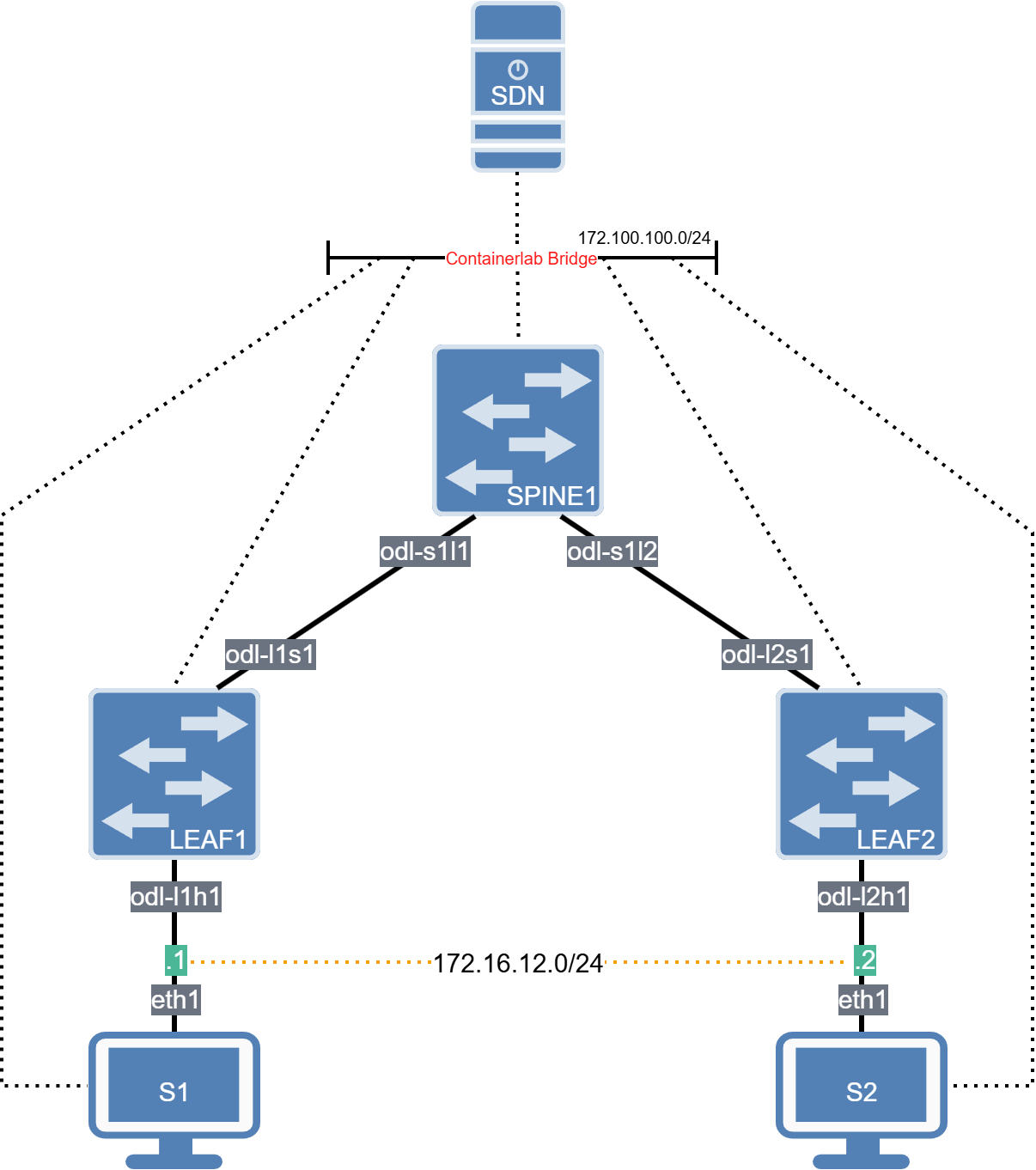
Here’s what we have:
- We’ll use Open vSwitch for the switches with a spine-leaf architecture.
- The hosts are two Linux Docker containers so that we have something to test reachability.
- The ONOS SDN Docker container.
We’ll use Containerlab to deploy this entire topology. You can find all the files you need here:
Open vSwitch
We will use Open vSwitch. You need to run these commands with sudo permission on your host machine (the machine running Containerlab).
First, install OVS if you haven’t already:
# apt install openvswitch-switchWe’ll create three switches (bridges):
# ovs-vsctl --may-exist add-br sdn-spine1
# ovs-vsctl --may-exist add-br sdn-leaf1
# ovs-vsctl --may-exist add-br sdn-leaf2
I like to set static MAC addresses on the bridge interfaces. This makes it much easier to identify devices in the controller GUI or during debugging:
# ovs-vsctl set bridge sdn-spine1 other-config:hwaddr=00:50:c2:53:10:01
# ovs-vsctl set bridge sdn-leaf1 other-config:hwaddr=00:50:c2:53:20:01
# ovs-vsctl set bridge sdn-leaf2 other-config:hwaddr=00:50:c2:53:30:01
Now we configure the switches to use OpenFlow 1.3 and point them to our ONOS controller. Based on our configuration, the controller will listen on port 6653. We also set the fail_mode to secure:
# ovs-vsctl set bridge sdn-spine1 fail_mode=secure
# ovs-vsctl set bridge sdn-spine1 protocols=OpenFlow13
# ovs-vsctl set-controller sdn-spine1 tcp:172.100.100.10:6653

# ovs-vsctl set bridge sdn-leaf1 fail_mode=secure
# ovs-vsctl set bridge sdn-leaf1 protocols=OpenFlow13
# ovs-vsctl set-controller sdn-leaf1 tcp:172.100.100.10:6653

# ovs-vsctl set bridge sdn-leaf2 fail_mode=secure
# ovs-vsctl set bridge sdn-leaf2 protocols=OpenFlow13
# ovs-vsctl set-controller sdn-leaf2 tcp:172.100.100.10:6653
The fail mode tells the switches to drop all traffic when they lose the connection to the SDN controller. That’s all we need to do to prepare the switches.
Containerlab
We’ll use Containerlab to orchestrate the controller and the hosts. Here is the topology file:
# SDN Lab

name: sdn-onos

mgmt:
  network: statics
  ipv4-subnet: 172.100.100.0/24

topology:
  kinds:
    linux:
      image: networklessons/lab-node-ubuntu:270
  nodes:
    controller:
      kind: linux
      image: onosproject/onos:2.7-latest
      mgmt-ipv4: 172.100.100.10
      ports:
      - "8181:8181"  # REST API and GUI
      - "8101:8101"  # ONOS CLI
      - "9876:9876"  # intra-cluster communication
      - "6653:6653"  # OpenFlow
      - "6640:6640"  # OVSDB
      - "830:830"    # NETCONF
      - "5005:5005"  # debugging
    sdn-spine1:
      kind: ovs-bridge
    sdn-leaf1:
      kind: ovs-bridge
    sdn-leaf2:
      kind: ovs-bridge
    s1:
      kind: linux
      mgmt-ipv4: 172.100.100.51
      exec:
      - ip link set dev eth1 address 00:50:c2:53:40:01
      - ip addr add 172.16.12.1/24 dev eth1
    s2:
      kind: linux
      mgmt-ipv4: 172.100.100.52
      exec:
      - ip link set dev eth1 address 00:50:c2:53:50:01
      - ip addr add 172.16.12.2/24 dev eth1
  links:
    # Spine-to-Leaf links (controller-facing)
    - endpoints: ["sdn-spine1:onos-s1l1", "sdn-leaf1:onos-l1s1"]
    - endpoints: ["sdn-spine1:onos-s1l2", "sdn-leaf2:onos-l2s1"]
    # Leaf-to-Server links (access ports)
    - endpoints: ["sdn-leaf1:onos-l1h1", "s1:eth1"]
    - endpoints: ["sdn-leaf2:onos-l2h1", "s2:eth1"]
Let’s deploy the lab:
14:17:12 INFO Containerlab started version=0.72.0
14:17:12 INFO Parsing & checking topology file=sdn-onos.clab.yml
14:17:12 INFO Creating lab directory path=/home/ubuntu/labs/containerlab/labs/sdn/onos/clab-sdn-onos
14:17:12 INFO Creating container name=controller
14:17:12 INFO Creating container name=s2
14:17:12 INFO Creating container name=s1
14:17:12 INFO Created link: sdn-leaf2:onos-l2h1 ▪┄┄▪ s2:eth1
14:17:12 INFO Created link: sdn-leaf1:onos-l1h1 ▪┄┄▪ s1:eth1
14:17:12 INFO Created link: sdn-spine1:onos-s1l1 ▪┄┄▪ sdn-leaf1:onos-l1s1
14:17:12 INFO Created link: sdn-spine1:onos-s1l2 ▪┄┄▪ sdn-leaf2:onos-l2s1
14:17:12 INFO Executed command node=s1 command="ip link set dev eth1 address 00:50:c2:53:40:01" stdout=""
14:17:12 INFO Executed command node=s1 command="ip addr add 172.16.12.1/24 dev eth1" stdout=""
14:17:12 INFO Executed command node=s2 command="ip link set dev eth1 address 00:50:c2:53:50:01" stdout=""
14:17:12 INFO Executed command node=s2 command="ip addr add 172.16.12.2/24 dev eth1" stdout=""
14:17:12 INFO Adding host entries path=/etc/hosts
14:17:12 INFO Adding SSH config for nodes path=/etc/ssh/ssh_config.d/clab-sdn-onos.conf
╭──────────────────────────┬────────────────────────────────────┬─────────┬────────────────╮
│           Name           │             Kind/Image             │  State  │ IPv4/6 Address │
├──────────────────────────┼────────────────────────────────────┼─────────┼────────────────┤
│ clab-sdn-onos-controller │ linux                              │ running │ 172.100.100.10 │
│                          │ onosproject/onos:2.7-latest        │         │ N/A            │
├──────────────────────────┼────────────────────────────────────┼─────────┼────────────────┤
│ clab-sdn-onos-s1         │ linux                              │ running │ 172.100.100.51 │
│                          │ networklessons/lab-node-ubuntu:270 │         │ N/A            │
├──────────────────────────┼────────────────────────────────────┼─────────┼────────────────┤
│ clab-sdn-onos-s2         │ linux                              │ running │ 172.100.100.52 │
│                          │ networklessons/lab-node-ubuntu:270 │         │ N/A            │
╰──────────────────────────┴────────────────────────────────────┴─────────┴────────────────╯
The lab is running. It might take a minute for the ONOS Java process to fully initialize.
ONOS SDN Controller
Let’s access the ONOS Command Line Interface (CLI). It uses port 8101. The default password is “karaf”:
# ssh -p 8101 karaf@172.100.100.10

Password authentication
(karaf@172.100.100.10) Password:
Welcome to Open Network Operating System (ONOS)!
     ____  _  ______  ____
    / __ \/ |/ / __ \/ __/
   / /_/ /    / /_/ /\ \
   \____/_/|_/\____/___/

Documentation: wiki.onosproject.org
Tutorials:     tutorials.onosproject.org
Mailing lists: lists.onosproject.org

Come help out! Find out how at: contribute.onosproject.org

Hit '' for a list of available commands
and '[cmd] --help' for help on a specific command.
Hit '' or type 'logout' to exit ONOS session.

karaf@root >
By default, ONOS might not have all the applications active that we need for a basic L2 switch lab. You can see all available apps here:
karaf@root > apps -s                                                                                                                                                14:18:31
    3 org.onosproject.intentperf           2.7.1.SNAPSHOT Intent Performance Test
    4 org.onosproject.portloadbalancer     2.7.1.SNAPSHOT Port Load Balance Service

  [ output omitted ]

  168 org.onosproject.drivers.hp           2.7.1.SNAPSHOT HP Drivers
  169 org.onosproject.loadtest             2.7.1.SNAPSHOT Distributed Load Test
  170 org.onosproject.drivers.stratum-odtn 2.7.1.SNAPSHOT Stratum Odtn Drivers
  171 org.onosproject.castor               2.7.1.SNAPSHOT Castor
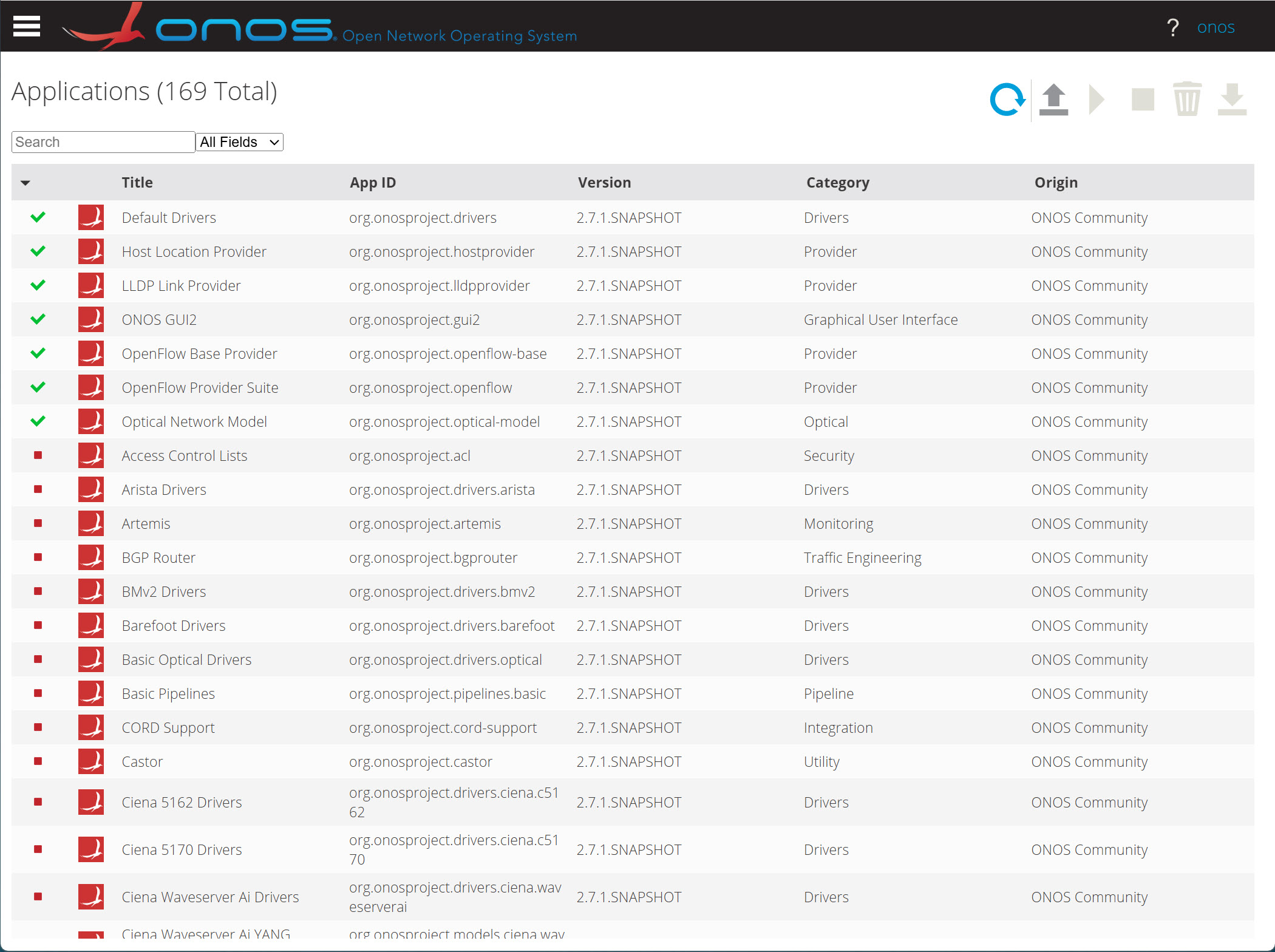
We need to activate the OpenFlow provider and Reactive Forwarding (fwd). The fwd app installs flows on demand, allowing our hosts to ping each other immediately.
karaf@root > app activate org.onosproject.openflow                                                                                                                  14:22:12
Activated org.onosproject.openflow
And:
karaf@root > feature:install onos-apps-fwdYou can verify they are active with:
karaf@root > apps -s -a                                                                                                                                             14:22:34
*  10 org.onosproject.drivers              2.7.1.SNAPSHOT Default Drivers
*  36 org.onosproject.optical-model        2.7.1.SNAPSHOT Optical Network Model
*  39 org.onosproject.hostprovider         2.7.1.SNAPSHOT Host Location Provider
*  40 org.onosproject.lldpprovider         2.7.1.SNAPSHOT LLDP Link Provider
*  41 org.onosproject.openflow-base        2.7.1.SNAPSHOT OpenFlow Base Provider
*  42 org.onosproject.openflow             2.7.1.SNAPSHOT OpenFlow Provider Suite
* 130 org.onosproject.gui2                 2.7.1.SNAPSHOT ONOS GUI2
We can now verify the devices (switches) from the CLI:
karaf@root > devices                                                                                                                                                14:23:00
id=of:00000050c2531001, available=true, local-status=connected 1m19s ago, role=MASTER, type=SWITCH, mfr=Nicira, Inc., hw=Open vSwitch, sw=3.3.4, serial=None, chassis=50c2531001, driver=default, channelId=172.100.100.1:59390, datapathDescription=None, managementAddress=172.100.100.1, protocol=OF_13
id=of:00000050c2532001, available=true, local-status=connected 1m19s ago, role=MASTER, type=SWITCH, mfr=Nicira, Inc., hw=Open vSwitch, sw=3.3.4, serial=None, chassis=50c2532001, driver=default, channelId=172.100.100.1:59376, datapathDescription=None, managementAddress=172.100.100.1, protocol=OF_13
id=of:00000050c2533001, available=true, local-status=connected 1m19s ago, role=MASTER, type=SWITCH, mfr=Nicira, Inc., hw=Open vSwitch, sw=3.3.4, serial=None, chassis=50c2533001, driver=default, channelId=172.100.100.1:59382, datapathDescription=None, managementAddress=172.100.100.1, protocol=OF_13
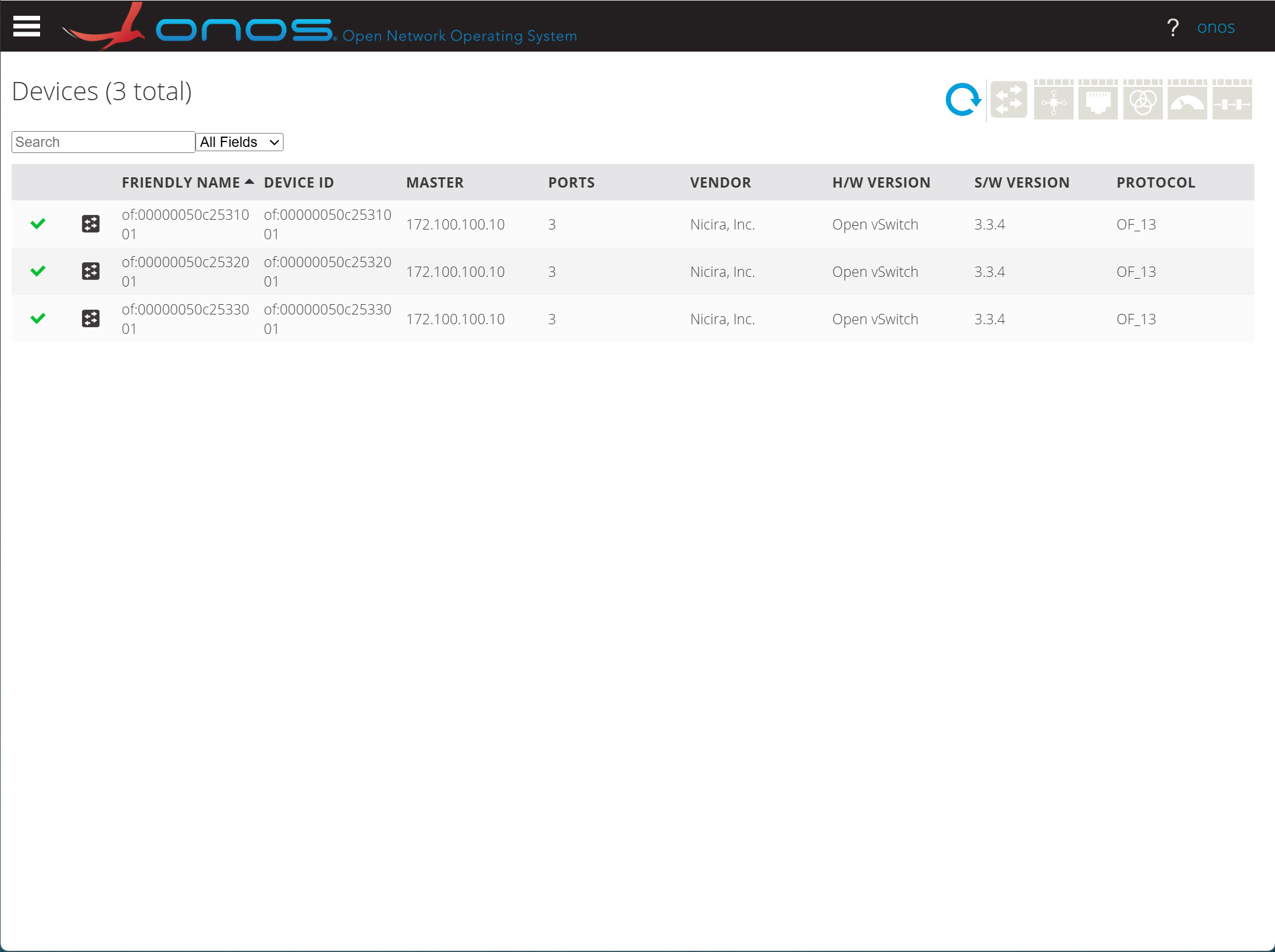
We see three devices using OpenFlow 1.3 (OF_13). This confirms our switches are successfully connected to the controller.
We can also check the GUI. Open your browser and navigate to:
http://172.100.100.10:8181/onos/uiYou’ll see the login screen:
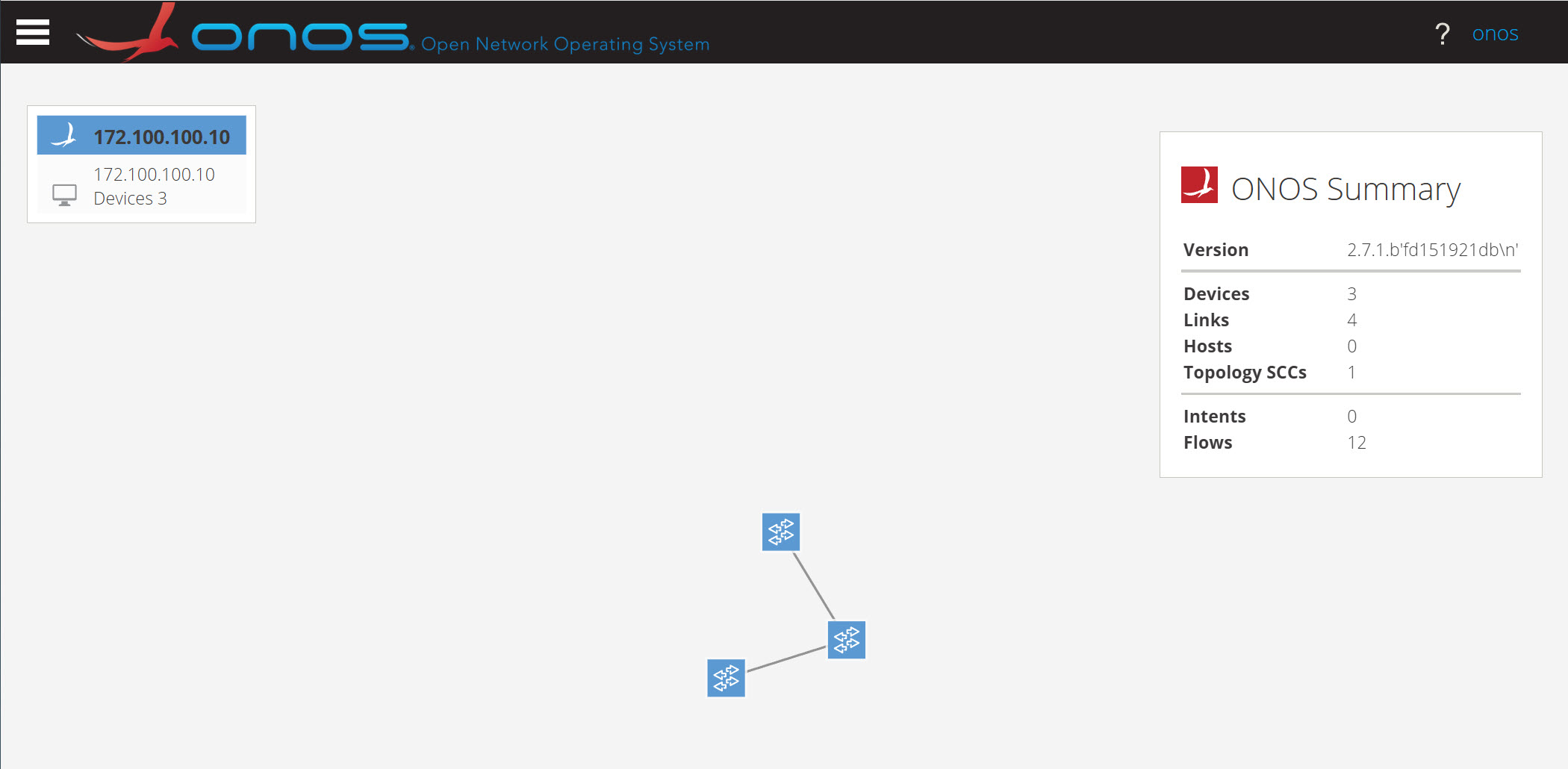
The default username is “onos” and the password is “rocks”. Once logged in, verify you are on the Topology view. You should see your spine and leaf switches.
You can see the devices here:
You can also see the applications here:
Verification
Let’s check if everything is working.
Hosts
We’ll start with the hosts. Let’s see if we can send some traffic from S1 to S2. We’ll SSH into host S1 (password “lab”):
$ ssh lab@172.100.100.51Let’s send a ping to S2:
lab@s1:~$ ping 172.16.12.2
PING 172.16.12.2 (172.16.12.2) 56(84) bytes of data.
64 bytes from 172.16.12.2: icmp_seq=1 ttl=64 time=32.0 ms
64 bytes from 172.16.12.2: icmp_seq=2 ttl=64 time=0.049 ms
64 bytes from 172.16.12.2: icmp_seq=3 ttl=64 time=0.060 ms
^C
--- 172.16.12.2 ping statistics ---
3 packets transmitted, 3 received, 0% packet loss, time 2036ms
rtt min/avg/max/mdev = 0.049/10.702/31.998/15.058 ms
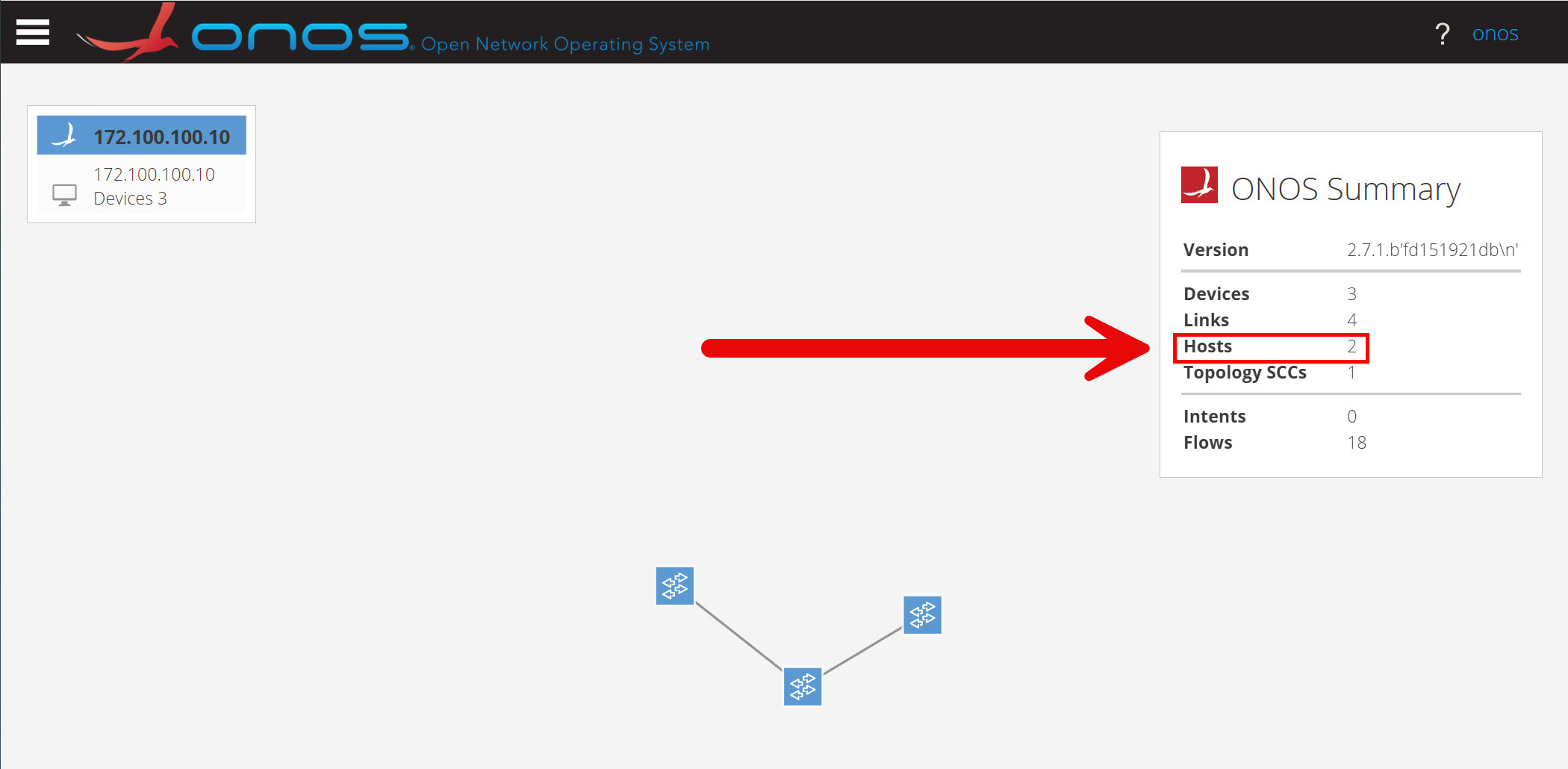
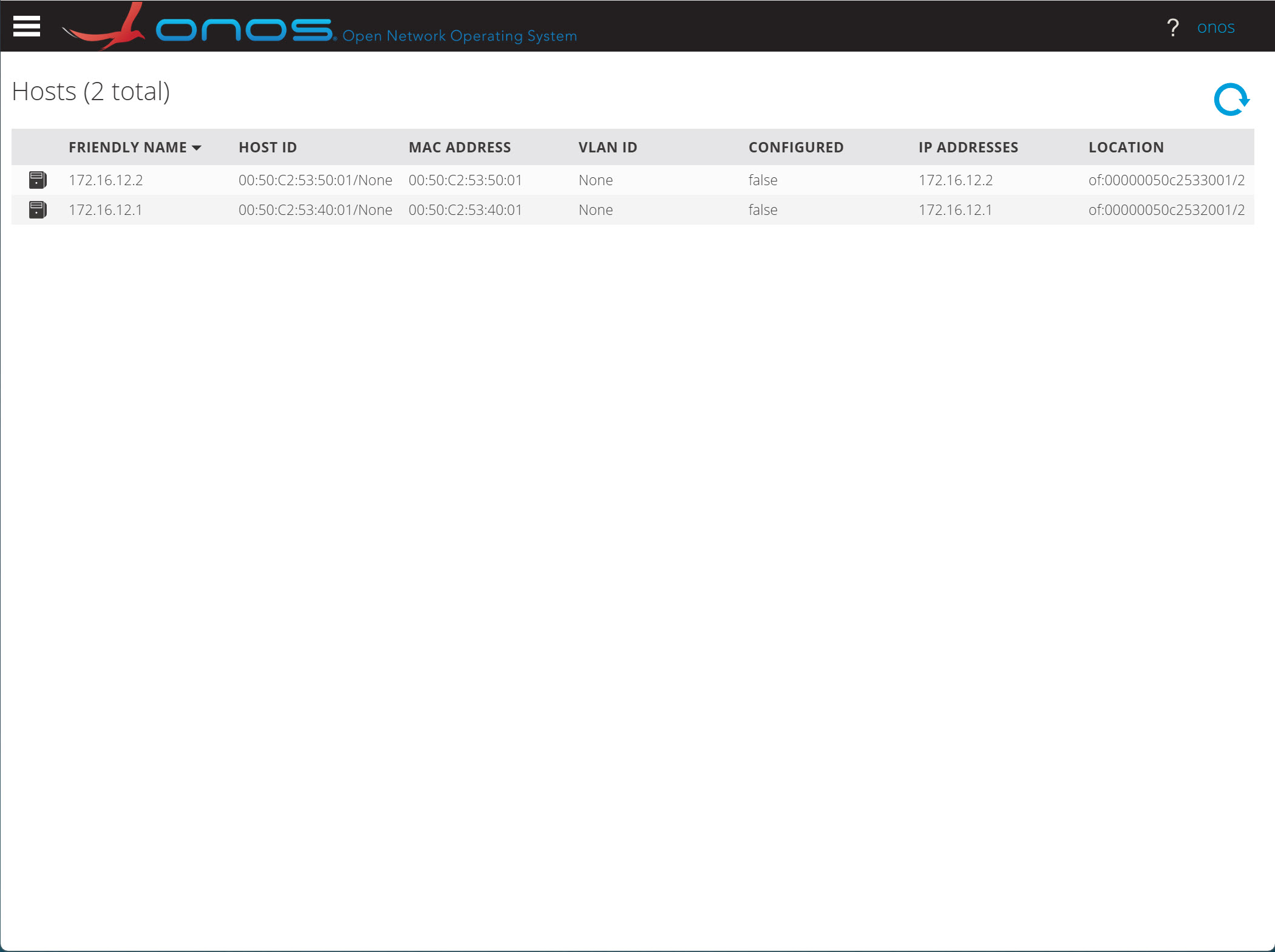
This is working without issues. If you look at the ONOS GUI now, it won’t show the hosts in the topology but you will see them under “Hosts”:
You can see the hosts if you click on the “hosts” section in the menu:
Open vSwitch
You can also run some commands on the OVS switches. We can verify the flows installed by ONOS on the switches directly. Here’s how:
# ovs-ofctl -O OpenFlow13 dump-flows sdn-leaf1
 cookie=0x10000d20e0811, duration=774.312s, table=0, n_packets=250, n_bytes=35250, send_flow_rem priority=40000,dl_type=0x88cc actions=CONTROLLER:65535,clear_actions
 cookie=0x10000c56e5de9, duration=774.312s, table=0, n_packets=250, n_bytes=35250, send_flow_rem priority=40000,dl_type=0x8942 actions=CONTROLLER:65535,clear_actions
 cookie=0x10000e6b793bc, duration=774.312s, table=0, n_packets=42, n_bytes=1764, send_flow_rem priority=40000,arp actions=CONTROLLER:65535,clear_actions
 cookie=0x100001f37e0be, duration=755.959s, table=0, n_packets=4, n_bytes=392, send_flow_rem priority=5,ip actions=CONTROLLER:65535,clear_actions
 cookie=0x5f0000920e3ed7, duration=364.332s, table=0, n_packets=355, n_bytes=34790, send_flow_rem priority=10,in_port="onos-l1h1",dl_src=00:50:c2:53:40:01,dl_dst=00:50:c2:53:50:01 actions=output:"onos-l1s1"
 cookie=0x5f0000108ce79a, duration=364.326s, table=0, n_packets=355, n_bytes=34790, send_flow_rem priority=10,in_port="onos-l1s1",dl_src=00:50:c2:53:50:01,dl_dst=00:50:c2:53:40:01 actions=output:"onos-l1h1"
We can see specific flows for IP traffic between our two hosts. These were created automatically by the fwd application in ONOS.
REST API
Just like OpenDaylight, ONOS has a powerful REST API and interactive API documentation (Swagger UI). You can access it via your browser: