

Lesson Contents
HSRP supports plain text and MD5 authentication. Without authentication, any router connected to the same subnet can join the HSRP group. With plain text authentication, the routers use a shared password, but as the name implies, it is not encrypted. Anyone in the subnet listening to HSRP packets can see the password.
In this lesson, I’ll show you how to configure HSRP plain text authentication.
Key Takeaways
- HSRP supports two authentication methods: plain text and MD5. Without authentication, any router on the subnet can join the HSRP group.
- Plain text authentication requires a matching password on all participating routers, but the password is visible in HSRP hello packets. Anyone capturing traffic on the subnet can read it.
- A mismatched authentication string causes a split-brain condition in which both routers simultaneously claim the active role, disrupting client traffic.
Prerequisites
You should be familiar with the basics of HSRP and the configuration of a single HSRP group.
Configuration
Here is the topology we’ll use:
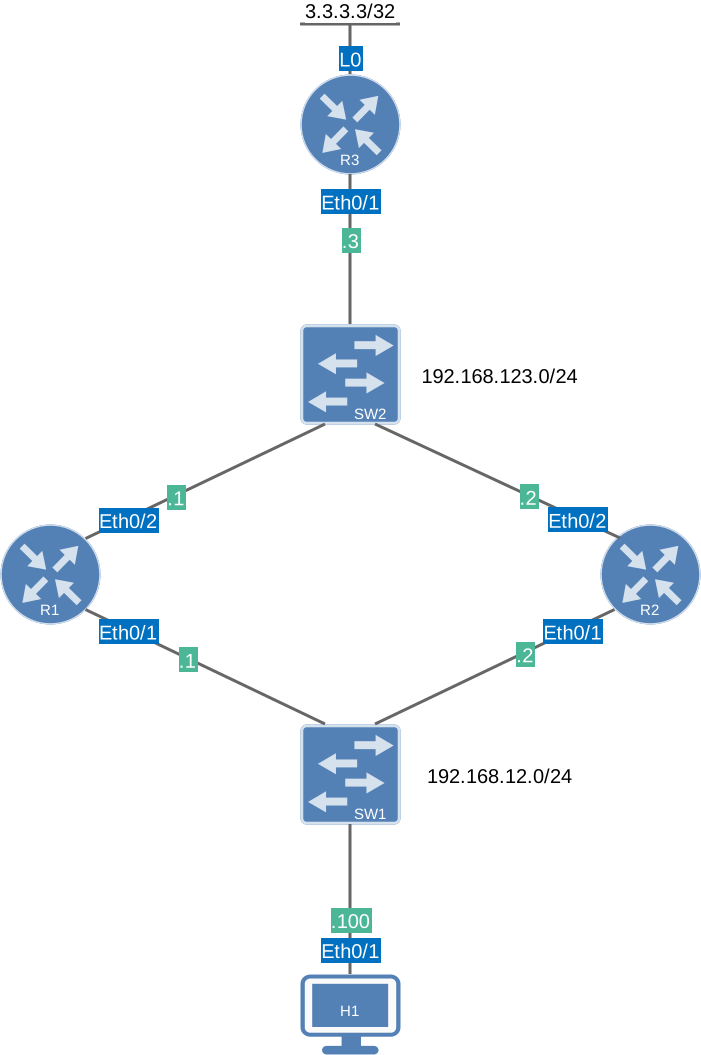
It’s the same topology we used in the HSRP basic configuration lesson. R1 and R2 use HSRP. H1 is a client device we can use to test the virtual gateway that R1 and R2 create. R3 is a remote router we can try to ping from H1.
Configurations
Want to take a look for yourself? Here you will find the startup configuration of each device.
R1
hostname R1
!
ip cef
!
interface Ethernet0/1
 ip address 192.168.12.1 255.255.255.0
 standby version 2
 standby 1 ip 192.168.12.254
 standby 1 priority 150
 standby 1 name HSRP_GATEWAY
!
interface Ethernet0/2
 ip address 192.168.123.1 255.255.255.0
!
router ospf 1
 router-id 1.1.1.1
 passive-interface Ethernet0/1
 network 192.168.12.0 0.0.0.255 area 0
 network 192.168.123.0 0.0.0.255 area 0
!
end
R2
hostname R2
!
ip cef
!
interface Ethernet0/1
 ip address 192.168.12.2 255.255.255.0
 standby version 2
 standby 1 ip 192.168.12.254
 standby 1 name HSRP_GATEWAY
!
interface Ethernet0/2
 ip address 192.168.123.2 255.255.255.0
!
router ospf 1
 router-id 1.1.1.1
 passive-interface Ethernet0/1
 network 192.168.12.0 0.0.0.255 area 0
 network 192.168.123.0 0.0.0.255 area 0
!
end
R3
hostname R3
!
ip cef
!
interface Loopback0
 ip address 3.3.3.3 255.255.255.255
!
interface Ethernet0/1
 ip address 192.168.123.3 255.255.255.0
!
router ospf 1
 network 3.3.3.3 0.0.0.0 area 0
 network 192.168.123.0 0.0.0.255 area 0
!
end
H1
hostname H1
!
ip cef
!
interface Ethernet0/1
 ip address 192.168.12.100 255.255.255.0
!
ip route 0.0.0.0 0.0.0.0 192.168.12.254
!
end
Let’s get started. We configure the authentication string on R1’s LAN-facing interface:
R1(config)# interface Ethernet0/1
R1(config-if)# standby 1 authentication text MY_KEY
And we’ll configure the same authentication string on R2:
R2(config)# interface Ethernet0/1
R2(config-if)# standby 1 authentication text MY_KEY
That’s all we need to configure.
Verification
We use show standby to verify that authentication is configured and that the HSRP relationship is still established: